31 March 2017

Reliance Jio extends Prime membership to 15 days

Reliance Jio Info comm has extended the deadline for subscriptions to its paid plans till April 15, and waived off monthly recharges for the next three months to all those who register in that time, intensifying a brutal price war being waged in the market.


Subscribers who have already registered for Jio Prime would be automatically shifted to the “Summer Surprise” offer.So far, over 72 million subscribers have opted for Prime membership, and Jio expects more of its over 100 million users and new ones to register for its services by mid-April.
"Jio’s free service period is coming to an end. Users who do not recharge by the extended date of 15th April will experience degradation and/or discontinuation of services,” Mukesh Ambani, chairman of Reliance Industries – parent of Jio – said in the statement.

“This extension (till April 15) will provide the necessary breathing room for users to avoid service disruption during the transition from free to paid services," he added.

He further said that the company was aware of some pockets of congestion on its network, but said that services will see a “dramatic” improvement in the coming weeks as the telco invests more in its network expansion.

Jio, which has already invested over Rs200,000 crore in its business, will double its telecom tower network by another 100,000 in the coming months, Ambani said.

Jio’s six months of free services - which started on September 5 and ended March 31 - had netted the telco over 100 million users and in the process hurt the industry’s revenue and profitability and forced players – big ones such as 
Vodafone India and Idea Cellular, and smaller ones such as Reliance Communications, Aircel and MTS – to merge among themselves, and some like Telenor to exit totally.

“This extension (till April 15) will provide the necessary breathing room for users to avoid service disruption during the transition from free to paid services," he added.
He further said that the company was aware of some pockets of congestion on its network, but said that services will see a “dramatic” improvement in the coming weeks as the telco invests more in its network expansion.
Jio, which has already invested over Rs200,000 crore in its business, will double its telecom tower network by another 100,000 in the coming months, Ambani said.
Jio’s six months of free services - which started on September 5 and ended March 31 - had netted the telco over 100 million users and in the process hurt the industry’s revenue and profitability and forced players – big ones such as Vodafone India and Idea Cellular, and smaller ones such as Reliance Communications, Aircel and MTS – to merge among themselves, and some like Telenor to exit totally.
While the incumbents were looking forward to Jio starting to charge for its services – albeit at sharp discounts – the latest offer will heap more pressure on the likes of Bharti Airtel, Vodafone India and Idea to come up with offers to keep their subscribers from switching over. And any such move will further dent their profitability at a time they need to invest to expand their 4G networks, say analysts.
"In a way Jio is continuing its free services, which will further negatively impact the industry which is already under great financial stress," Jaideep Ghosh, partner, management consulting, KPMG India.
On February 21, Ambani announced Prime membership to on board customers on a payment of a one-time fee of Rs 99. The membership, available for one year, gives the customers an option to choose from multiple data packs starting from Rs 149.
Jio, which launched services on September 5, disrupted the Indian telecom industry with its ‘Welcome’ and ‘Happy New Year’ offers which offered free voice and data services along with access to its digital content ecosystem.And analysts expect further impact on coffers of telcos.
"It is directed towards keeping the subscriber ramp up tempo going because any raising of prices would possibly impeded the take up, Therefore, this helps the take up of subscribers," Sandip Das, senior advisor, Analysys Mason and a former Jio chief executive, said.
He expects pricing in the market to remain disrupted as players try to gain market share or hold on to existing market share.
“For the next 12-18 months, it will be tough time for telcos. At one side they would need to continue to invest in data, but will see their revenue spiral downwards. With rising industry debt level, coupled with lowering of the prices, the finances will be seriously stretched," Das said.
Market leader Bharti Airtel's saw its net profit plunge 55% in the October-December quarter while Vodafone India posted a 1.9% drop in service revenue in the same period, No. 3 Idea posted its first net loss since listing in 2007.
"October-December numbers including quarterly revenue, profits, subscribers, data usage, had dipped for most telcos. While the same number are expected to dip in January-March, the decline that was anticipated to stabilise in the coming quarter, will now follow the same trend as the preceding quarters," said a senior analyst who did not want to be quoted.
Shares of Reliance Industries, the parent group of Reliance Jio Infocomm shot up on Friday by 3.93% to close at Rs 1319.20, on expectations of an end to Jio’s free services.

29 July 2016

Basic Ubuntu commands and Terminal shortcuts for beginner

Basic Ubuntu commands and Terminal shortcuts every beginner must know

Ubuntu is one of the most customizable Linux distribution available today.
Almost every Linux newbies start with Ubuntu when they enter to Linux world. This post is for beginners.

Here I am going to list some important basic Ubuntu commands every beginner must know.
I think Ubuntu's incredible flexibility is due mainly to its powerful shell, which is at the core of all Linux variants.Through the user-friendly 'Terminal' interface, you can easily interact with this shell using a wide variety of commands. Ubuntu uses BASH as its default shell and there are a lot of bash commands that confuses every Ubuntu beginners.

You don't have to learn all these bash commands, if you want to familiar with Ubuntu Terminal in your early Linux days. Else you only have to understand basic Ubuntu commands which help you to do some basic operations.

Basic Ubuntu Commands for Beginner

1.sudo
sudo (SuperUser DO) Linux command allows you to run programs or other commands with administrative privilege like "Run as administrator" in Windows. This is useful when, for example, you need to modify files in a directory that your user wouldn't normally have access to.

2.cd
cd (change director'') Linux command also known as chdir used to change the current working directory. You can use full paths to folders or simply the name of a folder within the directory you are currently working. Some common uses are:
  • cd/- Takes you to the root directory
  • cd..- Takes you up one directory level.
  • cd-- Takes you to the previous directory.
3.pwd 
pwd (print working directory) Ubuntu command displays the full pathname of the current working directory.

4.ls
ls (list) command lists all files and folders in your current working directory. You can also specify paths to other directories if you want to view their contents.

5.cp
cp (copy) Linux command allows you to copy a file. You should specify both the file you want to copied and the location you want it copied to - for example, cp sns/home/myfiles would copy the file "sns" to the directory"/home/myfiles'.

6.mv
mv (move) command allows you to move files. You can also rename files by moving
them to the directory they are currently in, but under a new name. The usage is the same as cp- for example mv sns/home/myfiles would move the file "sns" to the directory"/home/myfiles".


7.mkdir
mkdir (make directory) command allow you to create a new directory. You can specify where you want the directory created- if you do not do so, it will be created in your current working directory.

8.rm
rm (remove) command removes the specified file.
  • rmdir ("remove directory") - Removes an empty directory.
  • rm-r ("remove recursively") - Removes a directory along with its content.
9.history
history command displays all of your previous commands up to the history limit.

10.df
df (display filesystem) command displays information about the disk space usage of all mounted filesystems.

11.du
du (directory usage) command displays the size of a directory and all of its subdirectories.

12.free
free - Displays the amount of free space available on the system.

13.uname-a
uname-a - Provides a wide range of basic information about the system.

14.top
top- Displays the process using the most system resources at any given time.
  • The Up and Down arrow can be used to scroll through your command history, allowing you to quickly execute the same command multiple times.
  • The Tab key can be used to complete the command you are typing. If more than one command is possible, you can press it multiple times to scroll through the possible completions.
  • Ctrl+r allows you to search your history for commands matching what you have typed.
Hope you guys enjoyed the post.....If you like this than don't forget to like share. 

26 July 2016

KickassTorrents comes back again! with new domain


katThere is this thing with pirates sites, just like pirates, you can't keep them down for long. On Wednesday, the alleged ringleader of torrent website Kickass Torrents or kat.cr, Artem Vaulin was arrested in Poland and the domains of his website were seized, but as expected, the piracy site is available online again in the form of clone sites.
There are multiple clones of the website available online and Verge reports that is has received an emailed statement from the creators of one such clone, named Kickass, that says that the site is "hosted on multiple cloud servers to prevent blockage and the hosting information is well hidden behind Cloudflare."

According to The Verge:

The creators of Kickass claims the site is "hosted on mu
multiple cloud servers to prevent blockage, and the hosting information is well hidden Cloudfkare."

The anonymous contact said they'd improved on the original Kickass Torrents site by adding a mobile version and noted (with the original, ambiguous wording retained here) that site "will have the complete torrent database og KAT, including the comments, user information intact."  

24 July 2016

How to Root any version of Android without Computer

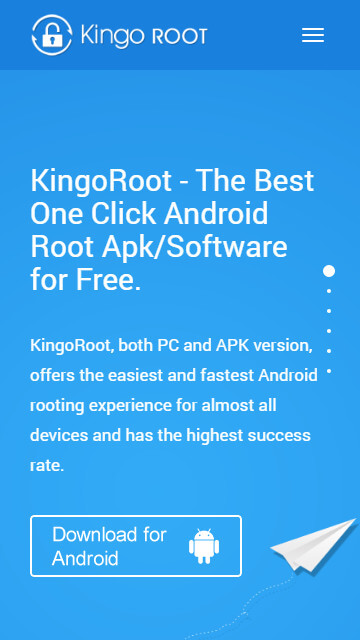
Kingo Android Root has launched its KingoRoot apk for Android, (click on the hyper link which is showing high lighted) which provides a universal one-click Android root solution for Android users. It is easy to use and saves the trouble to connect to PC via USB cable.
Before jumping into the rooting process, please make sure you get everything right beforehand.
  • Device powered on.
  • At least 50% battery level.
  • Internet connection necessary (Wi-Fi network suggested).
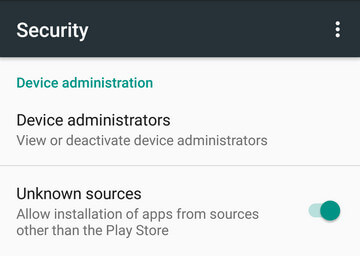
  • Allow installation of apps from unknown sources.
     Settings > Security > Unknown Sources        

Root Android via KingoRoot APK Without PC Step by Step


Step 1: Free download KingoRoot.apk.

Root Android with KingoRoot apk, without connecting to PC

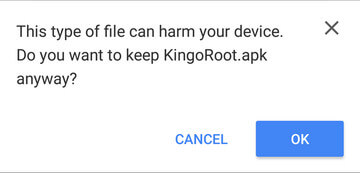
The download will be automatically started. If Chrome has warned you about KingoRoot.apk, click "OK" to proceed.

KingoRoot Apk Download, the best one-click root apk for free

If you are using PC to view this tutorial, you have three choices.

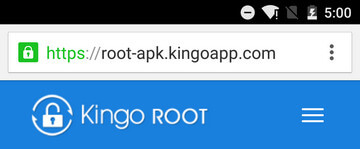
Kingo Root Apk Website, the best one click android root apk tool for free.
  • You can download KingoRoot.apk on your PC, transfer it to your Android device and then find the file via File Explorer and install it from APK section.

Step 2: Install KingoRoot.apk on your device.


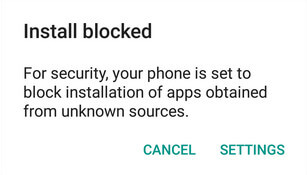
If you didn't check "Unknown Sources" in Settings > Security, then during installation, you will get a prompt "Install blocked", stating that "For security, your phone is set to block installation of apps obtained from unknown sources".
Root any Android device with KingoRoot, the best one-click Android apk root tool.

Just follow phone instructions and install Kingo Root on your device and allow installs from "Unknown Sources".

Root any Android device with KingoRoot, the best one-click Android apk root tool.

Step 3: Launch "Kingo ROOT" app and start rooting.

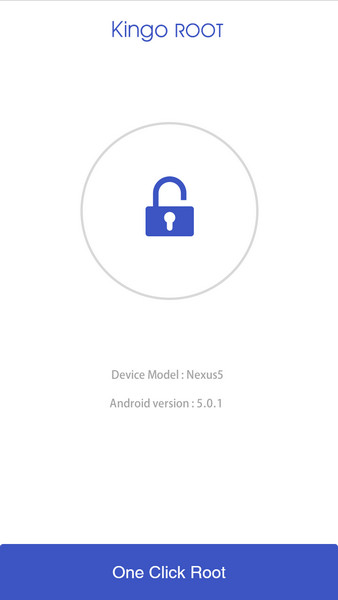
Kingo Root is very user-friendly and easy to use. Click "One Click Root" to start the rooting process.
Kingo Root Apk Main Interface

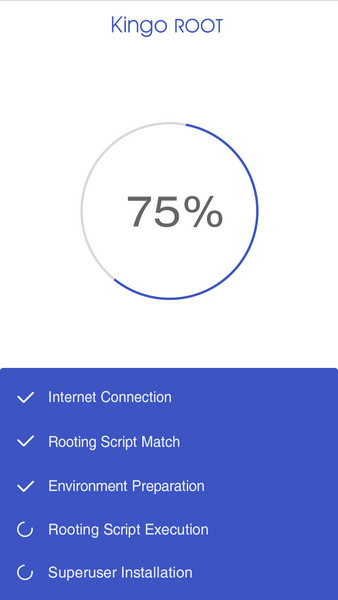
Step 4: Waiting for a few seconds till the result screen appear.

Kingo Root Apk Rooting

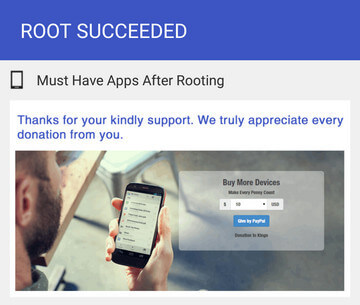
Step 5: Succeeded or Failed.

It is highly recommended that you try several times when rooting with KingoRoot apk version. We have several rooting methods integrated in apk root, however, it will only run one at a time.
Kingo Root Apk Root Succeed
 If KingoRoot APK failed to root your device after several trials, please refer to KingoRoot Android (PC Version), which has a much higher success rate due to technical reasons.

11 April 2015

Facebook Rolls Out Messenger for Desktop


Even though the desktop version of Facebook has a nice arrangement for messages, the developers of social network have decided to give a standalone Messenger client to its users.

The Messenger.com domain with Facebook has now finally been put to good use. Coming to think of it, with the upcoming Messenger-Business integration, this would be even more useful in letting users chat about products, purchase, updates and tracking.

Even though the web version is available only in English as of now, additional language support is to be followed soon.

All you need to do for using this app is to go to Messenger.com and sign in with your Facebook account. Your current chats be shown to you in the window that opens. You would also be given an option to call your contacts and make video calls with them, along with the general options like sending media files. Using the Settings options given in the upper left corner of the browser, you can adjust the settings like sound and desktop notifications.

3 April 2015

How to check who viewed your profile on Facebook


Everyone likes to know who has visited their Facebook profile.Whether  the person maybe a boy or a girl, they tend to have a desire to find out who has visited their Facebook profile as they are filled with these common questions- "Whether my crush checks my profile?", "Which girl/Boy always views my profile?" and so on... But I have seen many people trying to use 3rd party software which produce appropriate results are just spams.You can't determine who exactly is looking at your profile on a regular basis, you can determine who you interact with the most and who Facebook thinks your closest friends are.If you find someone in the list that you don't interact with them often, they may be expressing interest in your status updates (with likes, comments or views). Follow these simple steps and you are done.

1.Go to your timeline.

2.Right click on your timeline and select  view page source. This should take you to the new page.

3.There Press CTRL+F and you will open a box in the right corner. There search for the word "Initialchatfriendslist".


4 .Next to it you will see a lot of ids, they are nothing but the profile ids. The numbers which immediately follow are the identification numbers of the profiles. You will see a set of numbers, each set in quotations and followed by "-0", "-2", or "-3". Copy the string without the - and the final number. Paste this after the "facebook.com/" when looking at the main facebook page. This will bring up the profiles so you know who it belongs to.

eg: If 111111-2 is string copy 111111 and open a new tab and type "facebook.com/pate" then press enter. That's you are done.
Hope you guys enjoyed the post.
Don't forget to share and subscribe us.

Also see:How to delete Facebook account permanently


30 March 2015

How to transfer file from one PC to another PC through LAN cable

Hello readers, I know you are searching for the way to transfer files from one computer to another. If yes, then you are on the right place. Here I have listed a way to transfer files from PC to PC using a LAN cable which is probably the best way to transfer files from one computer to another computer. You may want to transfer files from old computer to new computer, or may be from your friends computer or laptop to your PC. Whatever the situation may be, If you want to transfer files from PC to PC then just follow the steps given below.
For transferring files from PC to PC, you need two computers and one cross over cable and of course my article :P

Follow these steps carefully to transfer file 

First of all we need to configure IPV4 addresses on both the computers, since we are transferring the data using LAN.
STEP 1: Open the control panel by opening it from start-> or by opening run(win+r) and then typing "control"

STEP 2: Then, click on "Change advanced sharing settings"


STEP 3: A window will open with multiple options like Network discovery, File and printer sharing, Home group connections etc...., check all the options to allow as shown in the below image.
Just check all the options to "Turn on network discovery, Network sharing etc...


Repeat the same thing in both the computers
STEP 4: After completing the above steps, you need to connect these computers with cross wire cable and configure  IPV4 addresses.
STEP 5: For configuring the IP addresses, you need to open Network connections either by navigating to this "Control Panel\Network and Internet\Network Connections" or by opening run(win+r) and then typing command "ncpa.cpl"


STEP 6: Right click on Ethernet and click on "properties" -> Then scroll down a bit and select "Internet protocol version version 4"


STEP 7: Insert the following IP address -> 192.168.1.1, Subnet mask: 255.255.255.0(if you press tab it comes automatically), Default gateway: 192.168.1.2, and leave the remaining fields as empty and click on OK.

STEP 8: Insert the above details in  first computer and just interchange the IP address and Default gateway and enter them in second computer.


STEP 9: Now you are 80% done.You done with the connections and now, you have to concentrate on transferring data from PC to PC.
STEP 10: For proceeding to that step, you need to make sure that your computers are connected by checking the "Network" options which will be shown up when you open Windows explorer (win+E).
If you have two computers shown there then, your computers are connected.

Now you can transfer files from  PC to PC by following these steps.

>Right click on file or folder you want to share.
>Select "Share with" and then , select specific people.
>Then, there will be a drop down select "Everyone" and click on add.

Now click on share and you are done!You can now see your shared files by accessing through Network tab. I hope it is clear from above steps that how to transfer files from one PC to another PC. Still If you are getting problem feel free to comment below. Don't forget to share and subscribe. Thankyou

25 March 2015

How to Activate Windows and Office any Version


Hello readers, Today I am going to teach you that how to activate any version of Windows and Microsoft Office by using a tool known as KMSpico.
KMSpico is the most successful, frequently updated and 100% clean tool to permanently activate any version of Windows and Microsoft Office within matter of second. Activator does not require user intervention, the entire activation process takes place in the background, just run the activator and a couple of minutes to check the activation status of Windows/Office.

Supported Products

  • Windows Vista Business/N/Enterprise/N
  • Windows 7 Professional/N/Enterprise/N
  • Windows 8 All
  • Windows 8.1 All
  • Windows 8.1 Update 1
  • Office 2010/2013
  • Windows Server 2008/Standard/Datacenter/Enterprise/2008R2/Standard/Datacenter/Enterprise
  • Windows Server 2012/Standard/Datacenter/2012R2/Standard/Datacenter

Instructions

  • Temporary disable your antivirus software (IMPORTANT! Otherwise KMSPico will be unable to modify Windows Registry entries that activates the Windows/Office)
  • Download the latest version of KMSPico (Click Here)
  • Complete the installation and wait for KMSPico to run automatically.
  • Press the red button and wait for the success message.

  • Done
That's it Guys you have activated your Windows/Office.
Hope you guys enjoyed the post......Don't forget to share and subscribe us

Also Read: How to activate Whatsapp calling easily


24 March 2015

How to activate Whatsapp calling easily


WhatsApp's voice calling feature is now available to all Android users. The world's most popular messaging app with over 700 million monthly active users only introduced this feature recently and rolled it out gradually to its Android users. If you are not an Android user, you'll just have to wait a little longer to get this feature. But if you use Android, and haven't yet activated voice calling on WhatsApp, what are you waiting for?

The process isn't as simple as updating WhatsApp to start using the voice calling features. It involves a couple more steps that you need to follow. We've described these below, so take a look to enable voice calling on WhatsApp for Android.

1.Download the latest version of WhatsApp for Android from here. The latest version on WhatsApp's website is 2.12.7, from this link Whatsapp.

2.Once you have the latest version of WhatsApp installed on your Android phone, just message on +919570446130 saying call me on Whatsapp.

3.After few second you will get a call from that number....Answer the call and wait for 5 second.After 5 second call will automatically disconnected.

4.You'll have to receive the call and wait for a few seconds before disconnecting to activate WhatsApp voice calling.

5.When the feature is enabled on your smartphone, you'll see a new three-tab layout on WhatsApp, one each for Calls, Chats and Contacts.

Have you used WhatsApp calling on Android? Does the feature work well? Let us know via the comments.              

18 March 2015

How to Buffer Youtube Videos Faster


YouTube is the largest video sharing website so far. YouTube was initially launched on a February in the year 2005.After Google taking over in 2006 November  YouTube grew into to the biggest Video Library in the World. 15 years after its launch youtube today has more than 1 billion users. Every day people watch for over hundreds of millions of hours on YouTube and generate billions of views. YouTube’s statisitics show that almost 300 hours of video are uploaded to YouTube every minute. YouTube has grown so popular and vast that today its available in 61 languages and has more than a million advertisers.

YouTube allows you to watch videos of quality from 144p to 1080p. The problem arises while buffering a video.People having slow internet connection it will take more time the video itself to buffer.Many get irritated due to this. People have always searched for a method to speed up the buffering and the internet has lots and lots of answers for this.But most of them rarely work.Here we provide you with an actual simple trick which you can do to speed up your buffering.

How to Load Your Videos Faster

Google Chrome and Mozilla Firefox has many extensions and add-on’s available. You can simply download them by either searching for it in Google or checking it in the store. Here you will have to download a specific extension or add-on called the SmartVideo for YouTube. We recommend this since this is the best till now.This extension/add-on works better than other available.

1.Download SmartVideo for YouTube extension or add-on for the following browsers Google Chrome, Firefox Add-on.


 2.After the installation is done you will get some additional options in the YouTube website, now play any video on YouTube then you cbe will see those additional options below your playing video.
3.Then the next step is you need to click on Global Preferences from the right side placed under the video.
4.At last check mark the Smart Buffer Box.

Follow these steps correctly and you can actually see the difference.You can now see your videos loading up faster than before. Enjoy faster streaming. Happy YouTubing .If u like the plz share this :)

Note: This trick can be adopted by other browser users also . All you  need is the Smart Video for YouTube extension for the browser which you intend to use.